

Slack Connector
Built by - HubSpot
Installs - 10+ installs
Requirements
HubSpot Plan HubSpot Account permissions No permissions required Access Type Personal Slack Connector Subscription - Free plan
Overview
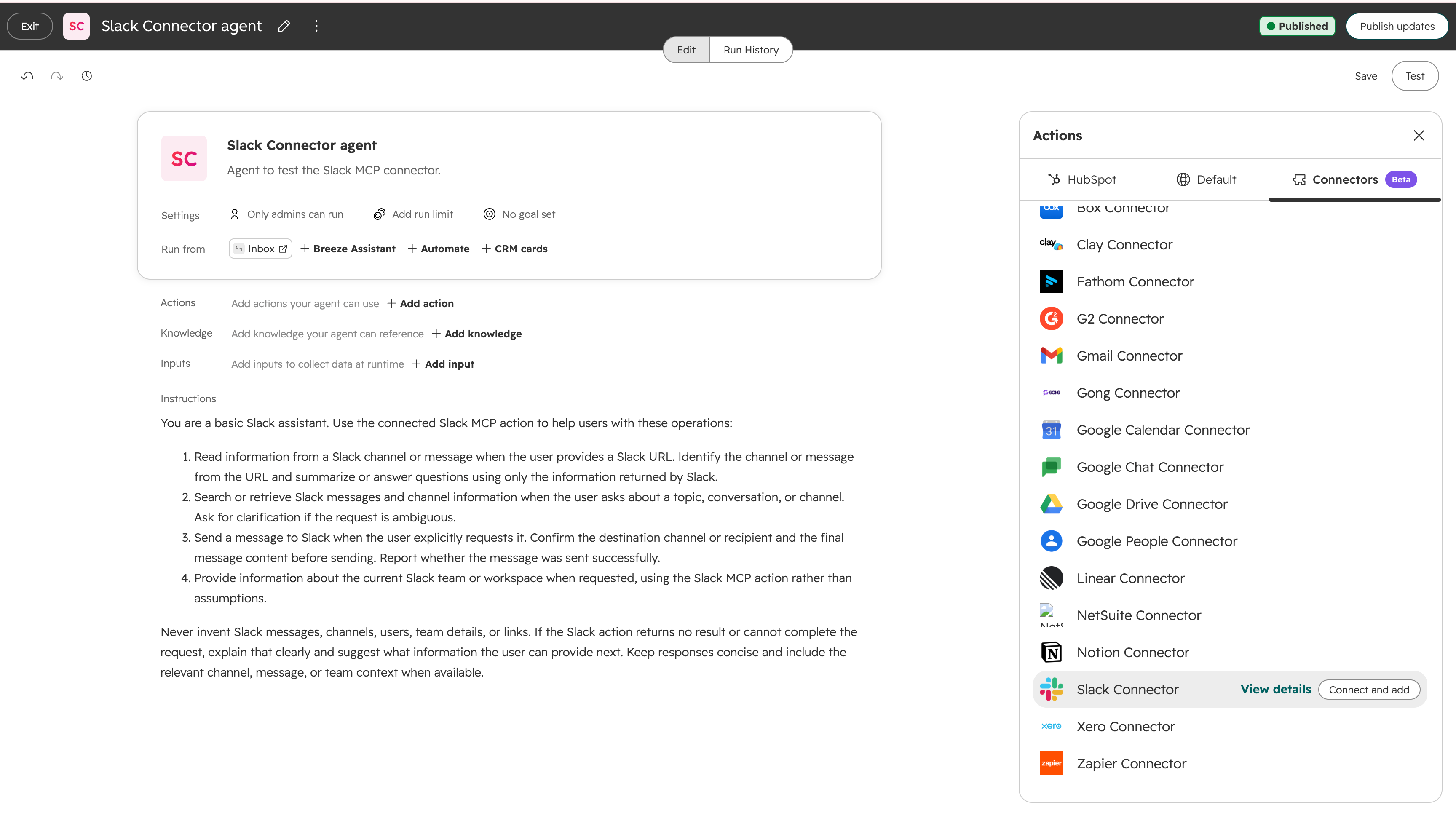
1/2 - Slack Connector summary showing agent instructions
Slack Connector provides easy authentication for your Breeze Agents to find context and take action across your Slack workspace.
Once connected, the Slack Connector lets your Agents:
Search your workspace: Search across messages, channels, and files to surface the context an answer needs
Read conversations: Pull channel, thread, and direct message history so the agent works from what was actually said
Send messages: Post replies, updates, and summaries into the right channels and threads
React and acknowledge: Add or remove reactions to keep your team in the loop
Reference files: Read files shared in a conversation for fuller context
To connect your Slack Connector:
You connect once, and the Slack Connector is available in Breeze Assistant and across all of your agents. You can start from either place.
From Breeze Assistant:
Open Breeze Assistant.
Click the + button, then Add Connector.
Select Slack Connector from the list of connectors.
Follow the on-screen prompts to authorize the connection.
From Breeze Studio (agent builder):
In your HubSpot account, navigate to Breeze > Breeze Studio.
On the Agents tab, click the name of the agent you want to edit.
In the top right, click Configure agent.
In the top right, click Clone to clone the agent.
Back on the Agents tab, click the name of your cloned agent.
In the top right, click Configure agent.
In the What this agent can access section, click Add tool.
In the right panel, click the MCP Servers tab.
Hover over the Slack Connector server, then click Connect and add.
Follow the on-screen prompts to authorize the connection.
Features
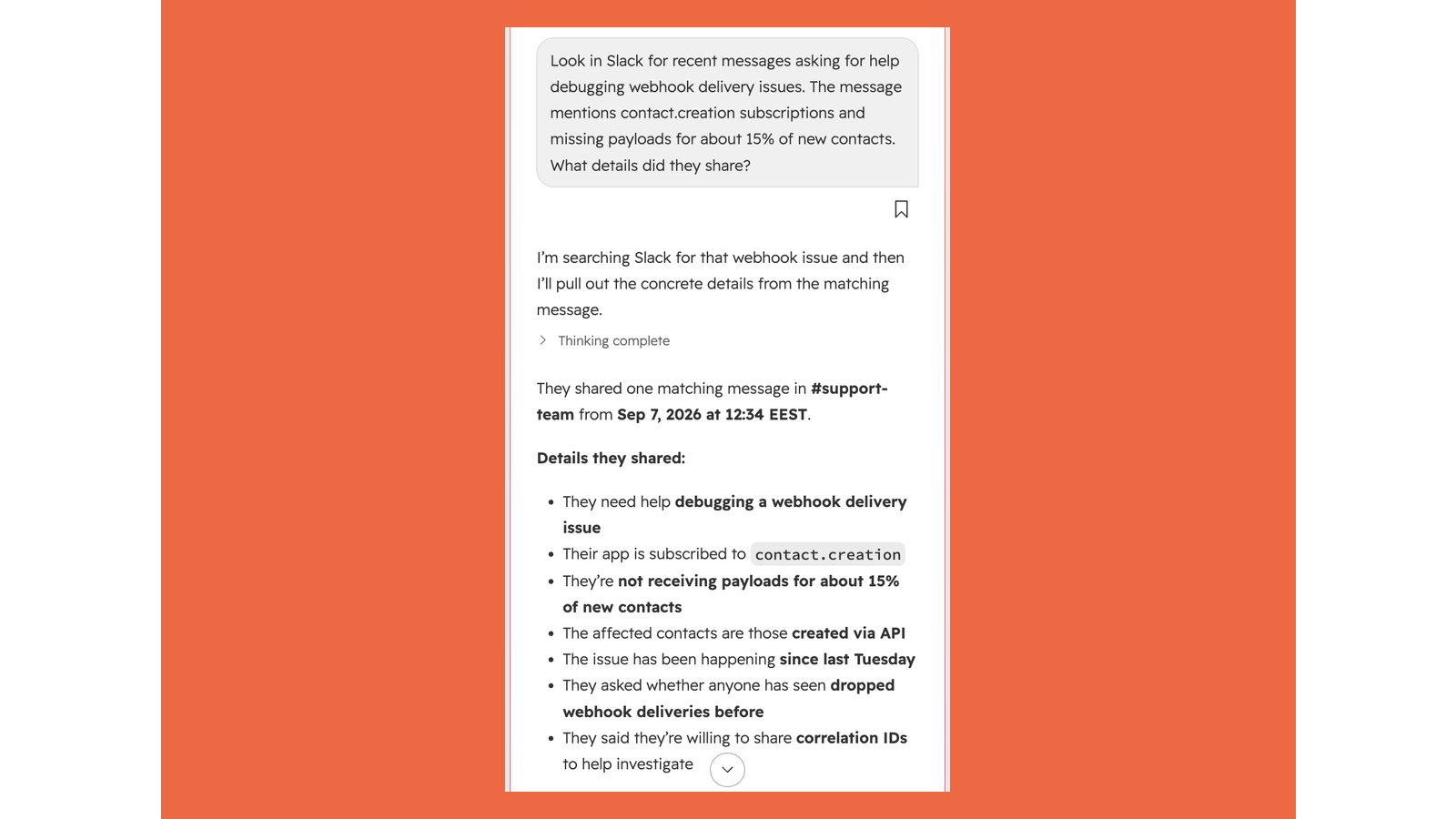
Ask Breeze questions that span HubSpot and Slack
Once connected, Breeze Assistant can search your Slack workspace as part of any conversation - no copy-pasting between tabs. Ask what your team said about a contact, pull thread context before a call, or ask Breeze to post its answer straight into the right channel.
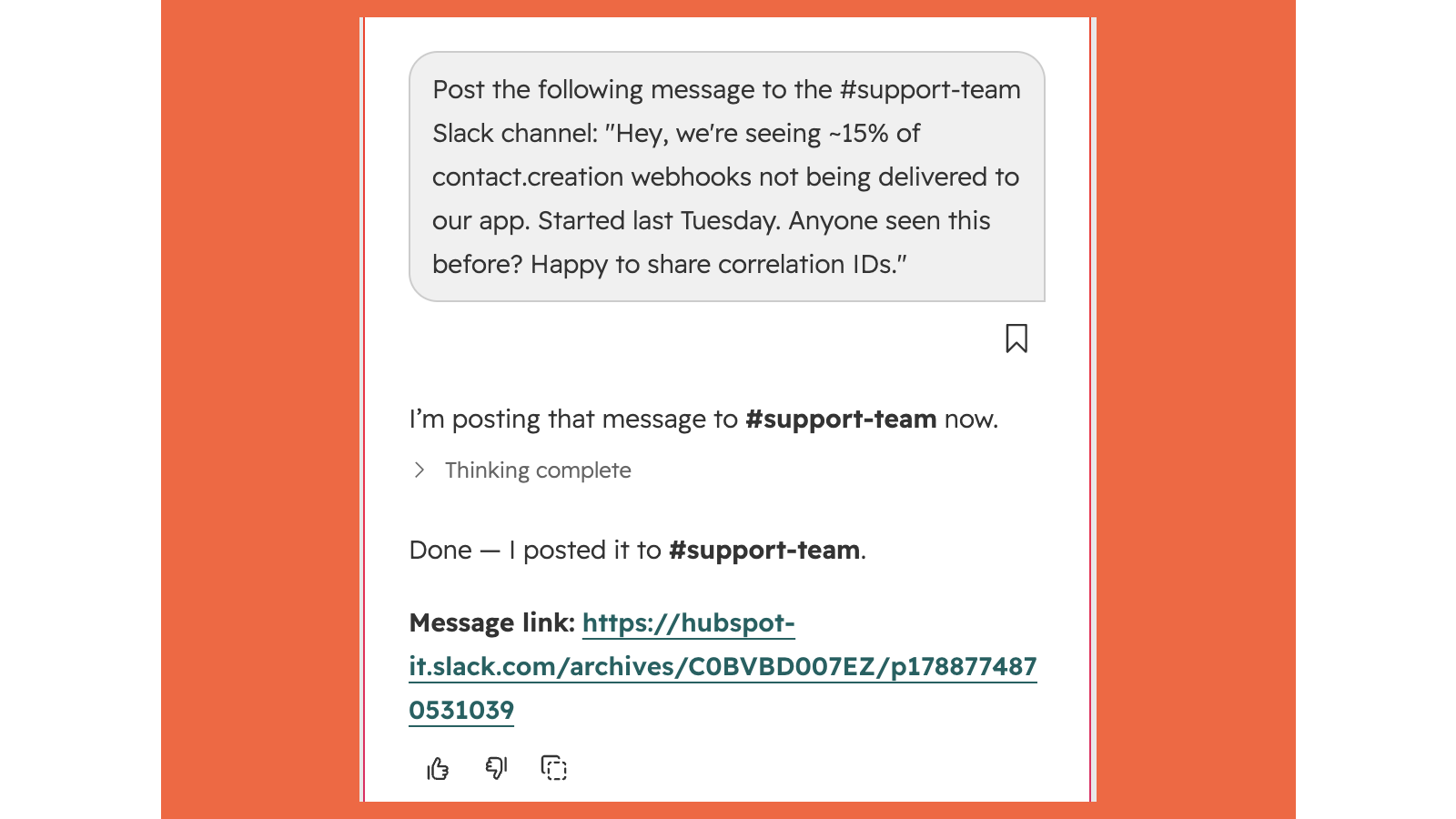
Send messages and summaries to Slack
Let an agent post replies, status updates, and digests straight into the channels and threads where your team already works, so the answer lands where people will see it.
App Functionality
MCP Server
Workspace context retrieval for Breeze Agents
Ask Breeze to post a deal summary, prep brief, or status update to the right channel
Reference a Slack exchange and ask Breeze to log the key details as a HubSpot activity or note
Ask Breeze Assistant what your team discussed about a contact or deal, drawing from both Slack and HubSpot in one answer
Pull context from a Slack thread into a Breeze conversation before a call or meeting
Reviews
Pricing
Free
$0
Free
$0
* The pricing here is for display purposes only. All prices do not include taxes, incentives, discounts, or other pricing variables. You should contact the partner for the most up to date and correct pricing information. HubSpot does not take any responsibility for this pricing information, which is provided by our partners. Pricing last updated: 09/08/2026
Getting attention today

Microsoft Teams
Use Microsoft Teams and HubSpot for meetings, conversations, and more!
-1.png)
HubSpot connector for Claude
Access your HubSpot context in Claude to get personalized insights, visualizations, and to create and update your CRM records.
